Getting Any API's Data Into Airtable Without Third-Party Tools
Sometimes the "easy" way to move data isn't easy at all — and sometimes it just doesn't work.
People want their data in Airtable constantly — a CRM's contacts, an internal tool's records, a SaaS product's usage stats. Before API Connection, the two common paths people reached for were exporting to CSV and importing that file, or wiring the source up to Airtable through Zapier. Both are multi-step, and both frequently just don't work.
Why CSV Export and Zapier Often Don't Work
The CSV round trip has a hidden precondition: the source system has to support exporting to CSV in the first place. Plenty of APIs and internal tools only speak JSON — there's no export button to click. Even when a CSV export exists, it's a one-time snapshot: the moment the source data changes, your Airtable copy is stale again, and someone has to remember to re-export and re-import.
Zapier solves the sync problem but adds a different requirement: it needs a purpose-built trigger or action for that exact service to already exist in its app directory. For a well-known SaaS product, that's usually fine. For an internal API, a newer product, or anything niche, it often just isn't there — and even when it is, you're paying an ongoing subscription and still doing manual field mapping in Zapier's UI. Between "the connector doesn't exist" and "the API only returns JSON with no CSV option," a lot of people trying to get their own data into Airtable simply couldn't.
Connecting Directly to Any API
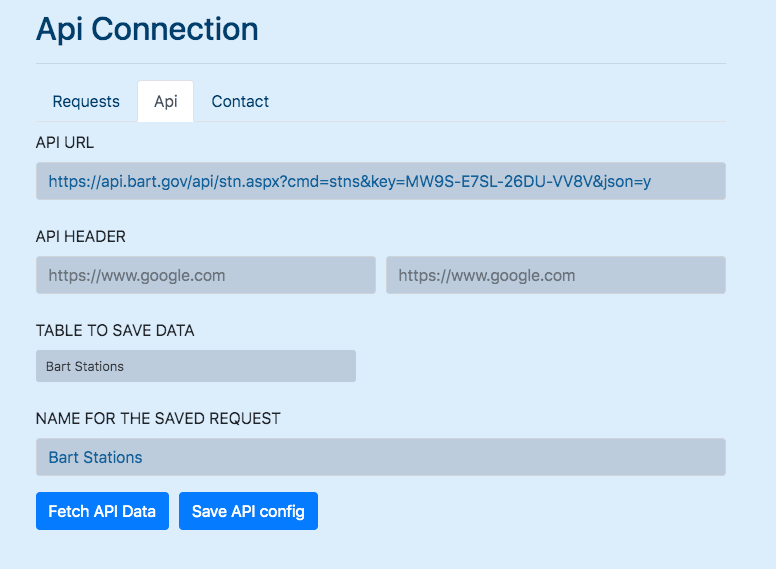
API Connection skips both workarounds and talks to the API directly from inside Airtable: a URL field, custom headers (for auth tokens or API keys), and a table picker for where the results land. The whole request/response/write cycle is a plain browser fetch:
export function fetchData() {
  return (dispatch, getState) => {
    const apiConfig = getState().app.apiConfig;
    const { url, headers, tableToSaveApiData } = apiConfig;

    const newHeaders = getHeaders(headers);
    let promise;

    if (_isEmpty(newHeaders)) {
      promise = fetch(url);
    } else {
      promise = fetch(url, { headers: newHeaders });
    }

    promise
      .then((response) => response.json())
      .then(async (resultsJson) => {
        const parsedJson = parseJSONObject_(resultsJson)
        const formattedRecords = transformDataToAirtableRecordFormat(parsedJson);
        await saveDataToTable(formattedRecords, tableToSaveApiData);
      });

    return promise;
  }
}
Each configuration — URL, headers, destination table, a name — can be saved and re-run later with one click, rather than re-entering everything each time:
export function saveRequestSync(apiConfig) {
  let uuid = apiConfig.uuid;
  if (!uuid) {
    apiConfig.uuid = uuidv4();
    uuid = apiConfig.uuid;
  }
  apiConfig.requestName = apiConfig.requestName || apiConfig.uuid;

  const savedRequests = globalConfig.get(['savedRequests']) || [];
  const index = _findIndex(savedRequests, (request) => {
    return request.uuid === uuid;
  });

  if (index != -1) {
    savedRequests[index] = apiConfig;
    globalConfig.setAsync(['savedRequests'], savedRequests);
    return 'updated';
  } else {
    savedRequests.push(apiConfig);
    globalConfig.setAsync(['savedRequests'], savedRequests);
    return 'saved';
  }
}
Turning Arbitrary JSON Into Rows and Columns
The genuinely clever part isn't the fetch — it's turning whatever shape of JSON comes back into something table-shaped. Rather than writing a new flattener, the project reuses ImportJSON, an open-source library originally built to import JSON feeds into Google Sheets. It flattens nested JSON into a two-dimensional array — a header row describing each field's path, followed by one row per record — the exact shape a spreadsheet (or an Airtable table) actually needs:
export function transformDataToAirtableRecordFormat(parsedJson) {
  if (_isEmpty(parsedJson)) {
    return [];
  }
  if (parsedJson.length < 2) {
    return [];
  }

  let headers = parsedJson[0];
  let values = parsedJson.slice(1);
  let records = [];

  for (let i = 0; i < values.length; i++) {
    let value = values[i];
    let record = {};
    for (let j = 0; j < value.length; j++) {
      let fieldValue = value[j];
      if (isPrimitive(fieldValue)) {
        fieldValue = fieldValue.toString();
      }
      record[headers[j]] = fieldValue;
    }
    records.push(record);
  }

  return { headers, records };
}
The first row becomes the field names; every row after that becomes one Airtable record, keyed by those same field names.
Auto-Creating Fields, Writing in Batches
Before writing a single record, the app checks whether each field from the flattened header row already exists on the destination table, and creates any that are missing as single-line-text fields. Records are then written in chunks of 50, matching Airtable's own per-request write limit:
export async function saveDataToTable(formattedRecords, tableToSaveApiData) {
  const { headers, records } = formattedRecords;

  if (!tableToSaveApiData) {
    return;
  }

  const table = base.getTableById(tableToSaveApiData);
  if (_isEmpty(table)) {
    return;
  }

  for (let i = 0; i < headers.length; i++) {
    const fieldName = headers[i];
    const field = table.getFieldByNameIfExists(fieldName)
    if (!field) {
      await table.unstable_createFieldAsync(fieldName, FieldType.SINGLE_LINE_TEXT);
    }
  }

  const chunkedData = _chunk(records, 50);

  for (let i = 0; i < chunkedData.length; i++) {
    const chunk = chunkedData[i];
    await table.createRecordsAsync(chunk);
  }
}
Data is always appended, never overwritten — running the same saved request twice adds a second copy of the data rather than updating the first. That's a deliberate simplicity tradeoff, not an oversight — see the comparison below for what that gives up against dedicated tools.
The One Real Limitation: CORS
Because this runs entirely client-side inside Airtable's own page, the request is a real browser fetch — which means it's subject to the same-origin policy and CORS like any other in-browser request. If the target API doesn't send the right Access-Control-Allow-Origin headers, the browser blocks the response before the app ever sees it. The app surfaces this directly: an error prompts "Does the API support CORS?" rather than failing silently or with an opaque message.
How This Compares to Marketplace Alternatives
There are real, actively maintained apps on the Airtable Marketplace solving the same core problem, with more built in:
- Data Fetcher — connects to REST and GraphQL APIs with a visual response field mapper, and can run on a recurring schedule (as often as every 5 minutes) instead of a manual click.
- ETL++ — connects to any REST API with visual JSON-to-field mapping, plus a "smart upsert" that updates existing records and prevents duplicates on repeated syncs, also on a customizable schedule.
Both add exactly what this project doesn't have: scheduled, unattended syncing and update-in-place instead of append-only. What API Connection demonstrates is that the core capability — talk to any API, reshape the response, write it into a table — doesn't require much code to work at all; scheduling and deduplication are real, separate features layered on top of that same basic idea.
The Full Picture
- Enter the API URL and any headers it needs (auth tokens, API keys)
- Pick which table the results should land in, and optionally save the request for reuse
- Fetch — the response is flattened into a header row plus data rows via ImportJSON
- Missing fields are created automatically, and records are written in batches of 50
- Re-run the saved request any time to append fresh data — no CSV, no waiting on a Zapier connector that might not exist